
SYNTHORY EVIDENCE CHECK FOR SCISURE
Getting started
Compare biomedical text with published research inside your SciSure experiment. Review each claim, its assessment and exact quotations from the publications used.
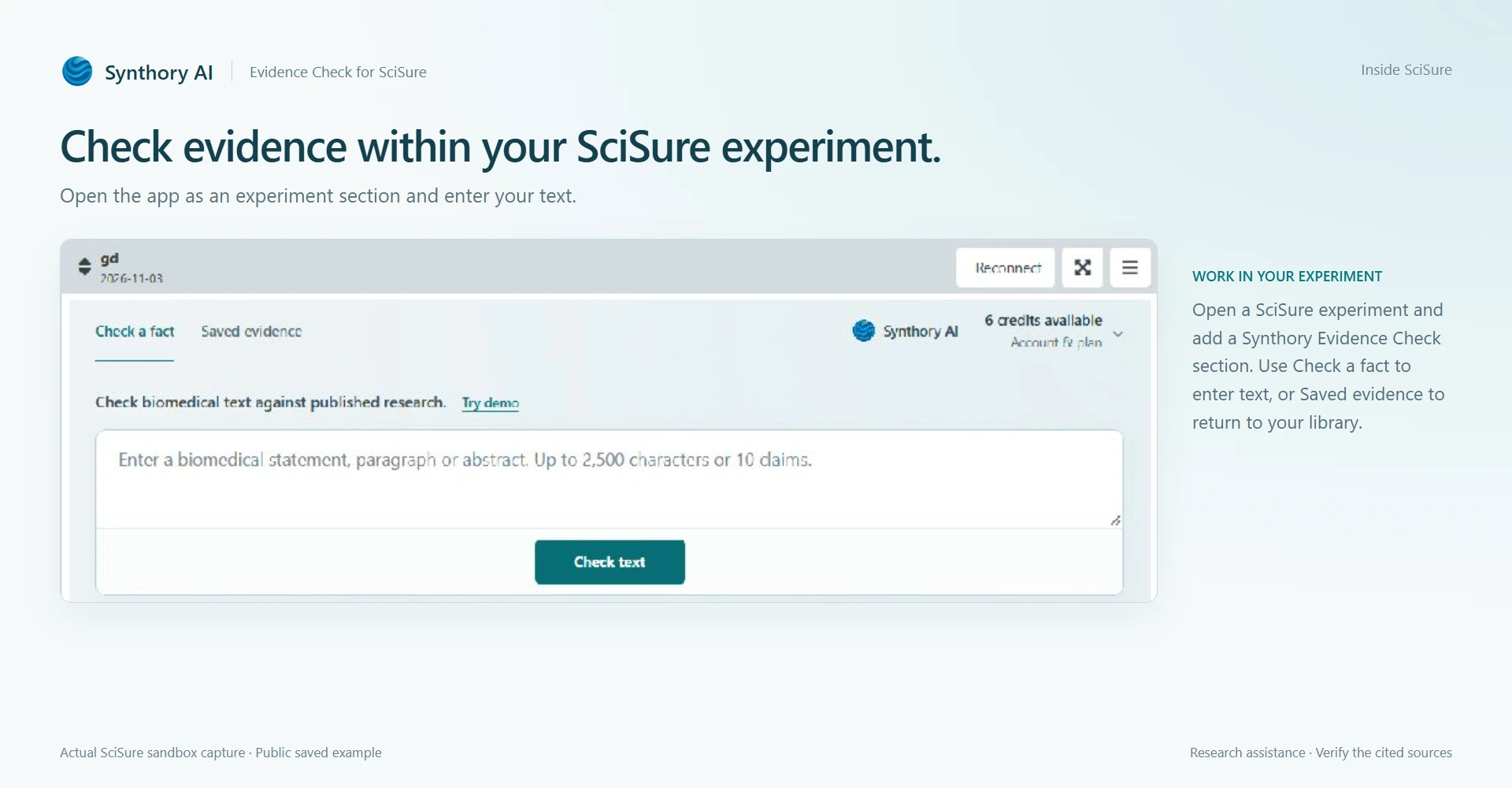
From text to findings
Enter a statement, paragraph or abstract. The app identifies checkable claims and searches for relevant publications.
Evidence you can inspect
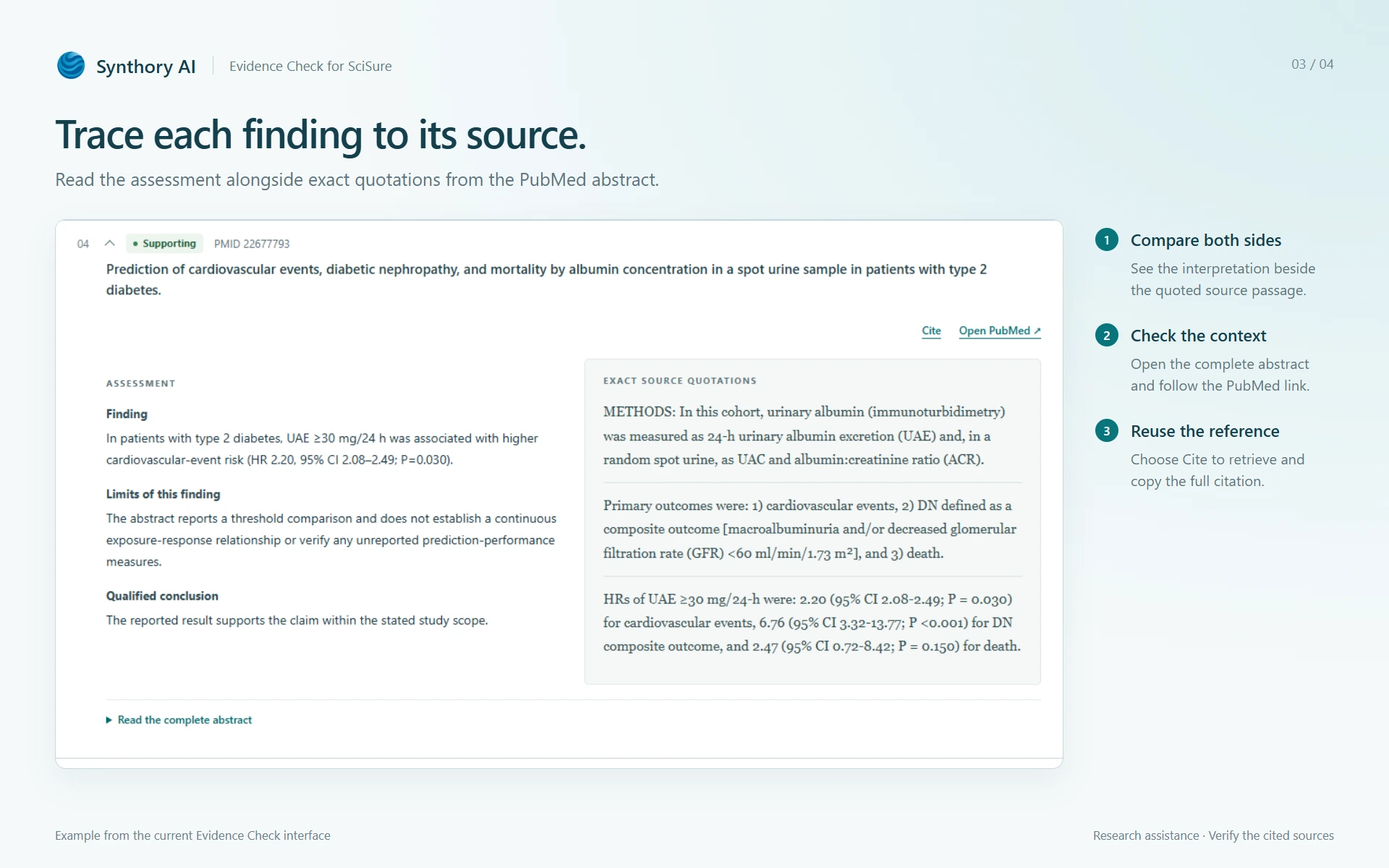
Open a finding to compare the interpretation with its source quotations, read the complete abstract and follow its PubMed link.
Assessments use the supplied PubMed abstract snapshots. They may miss relevant literature or misinterpret a study; check the sources before relying on a conclusion. Research assistance only.
Your first check
Install Synthory Evidence Check from SciSure’s Marketplace at Group scope. In an experiment, add the app as a section:
Add section → Data → Synthory Evidence Check
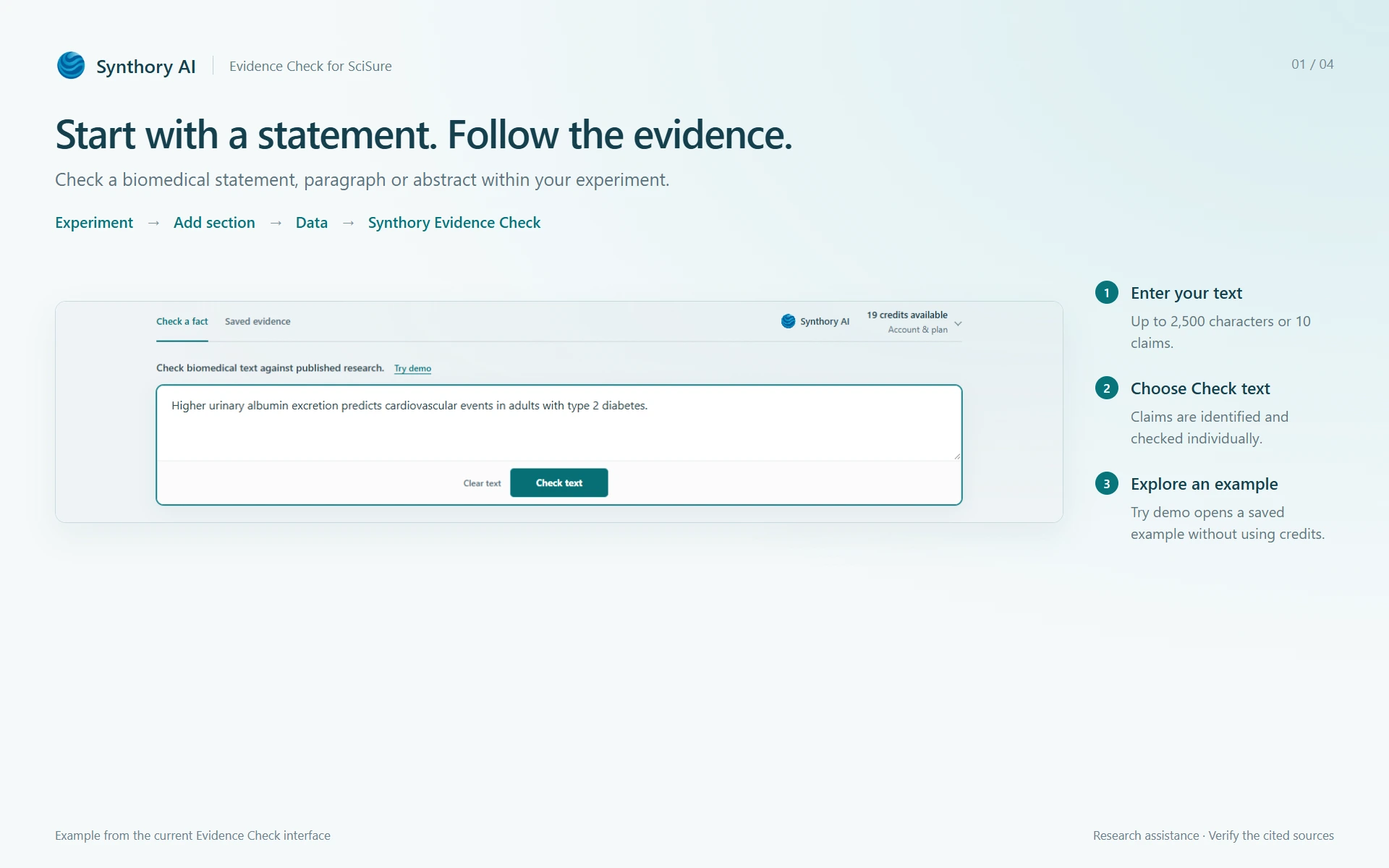
- Enter biomedical textUse one statement or a short passage, up to 2,500 characters or 10 claims.
- Select Check textThe app connects when you request an operation. Progress appears while the claims are checked.
- Review the findings belowThe text editor remains available above the findings for your next check.
For a first look, choose Try demo. It fills the editor with an example statement and opens its saved report without consuming credits.
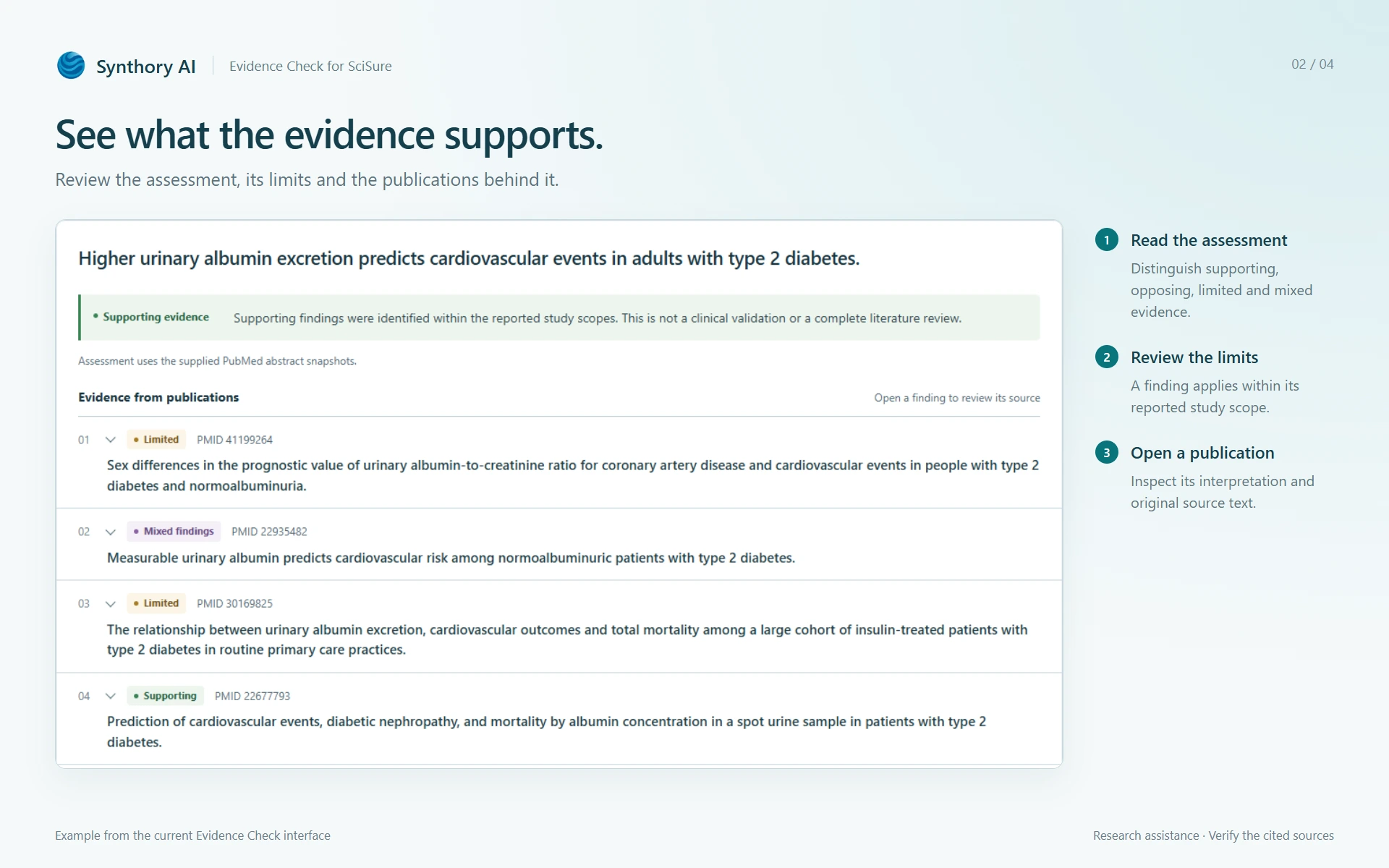
Read the findings
Each completed claim has an assessment. Open its card to see the publications used and the limits of their findings.
- Supporting or opposing evidence describes the direction of the reported findings.
- Limited or mixed evidence identifies partial support, study differences or findings that do not establish the whole claim.
- No qualifying evidence means a qualifying finding was not identified in this check. It does not prove the statement false.
After reopening the app, your last findings can return while the text box starts empty. Shared lab credits do not make your reports visible to other lab members.
Inspect the original source
Expand a publication under Evidence from publications. Read the finding and its limits beside the exact quotations. Use Read the complete abstract for more context, or Open PubMed to inspect the publication record.
Select Cite to retrieve the full reference and copy it in NLM format.
Keep evidence and notes together
Choose Save on a finding from a completed check, then open Saved evidence. Use collection tabs to organize your library.
- Create a collectionSelect Add collection and enter a unique name.
- Add a private noteOpen the saved finding, expand Collections & note, and choose Save note.
- Move it when neededUse Move to to place the finding in another collection. It leaves the previous collection.
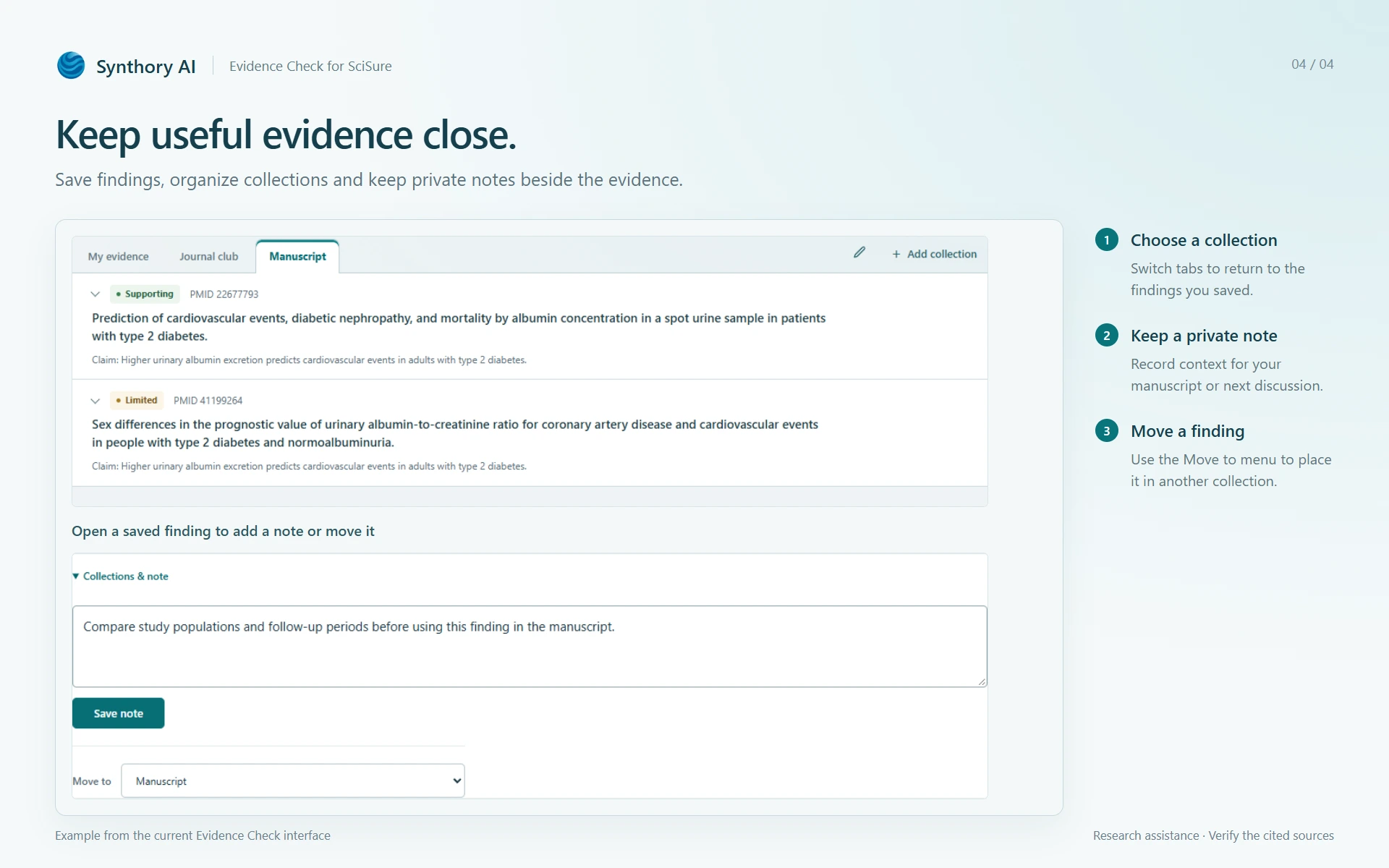
Rename or Delete collection is available beside Add collection when a named collection is selected. Deleting a collection keeps the saved evidence and notes; a non-empty collection asks for confirmation.
Accounts and credits
Open Account & plan to see your available credits and plan options. The free lab plan includes 20 shared credits each month. A paid Lab plan replaces the free allowance with 300 shared credits per month. Sign in by email to keep your personal account across devices.
To join a paid lab, open the app in that lab, verify your email and select Request lab access. Once the payer approves, you can use the lab balance. If you also have a Personal subscription, you can choose which balance funds your next check.
If you paid for the lab, open Account & plan and select Lab members. Under Requests, choose Approve or Decline. To end access, select Remove beside an approved member and confirm.
The add-on supports the SciSure EU and US shared-cloud sites and Sandbox. Contact Synthory before installing on a private-cloud or on-premises site.
Personal and Lab subscriptions offer monthly or yearly billing. Available plans and credit purchases appear in the app. Payments and subscription management open the payment provider’s secure page.
Your library, notes and findings belong to your account. A shared lab balance funds checks without sharing those private records with the whole lab.
Common questions
The evidence service is temporarily unavailable
Your locally saved findings can remain readable. When you request a server operation, the app shows a connection message and Retry. You can try again without discarding your text.
Why did a check find no evidence?
The check may not have found a relevant publication that meets its evidence rules, or the studies may not match the statement’s population, intervention or outcome. Review the scope and sources and consider a more specific statement.
Can I use a demo before running a check?
Yes. Try demo opens a precalculated public example and does not consume credits. The link can disappear after you complete your own check.
Does a cancelled subscription end immediately?
Cancellation normally stops renewal while access remains available until the displayed end date. Check Account & plan for the current status and manage the subscription through the secure payment page.
Need help? Contact am@synthory.ai and include the operation you attempted and the message shown. Keep passwords and email codes private.